Web accessibility testing is broken. Not because the tools are bad, but because developers don't know where to start. The WebAIM Million study found that 94.8% of the top one million homepages had detectable WCAG failures in 2025, averaging 51 errors per page (WebAIM, 2025). That's after two decades of published standards.
The gap isn't awareness. It's process. Only 12.5% of web practitioners received formal accessibility education (WebAIM, 2021). Most developers learn on the job, one failed audit at a time. This guide covers the full testing lifecycle: automated scanning, manual review, assistive technology, and CI/CD integration. No theory without practice. Every section includes something you can ship this week.
For a focused comparison of specific tools, see our guide to comparing accessibility testing tools.
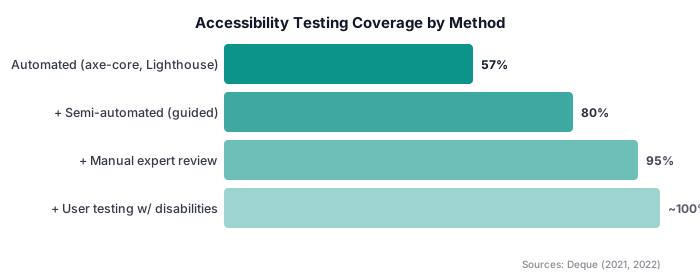
TL;DR: Automated tools catch 57% of accessibility issues by volume (Deque, 2021). Pair them with keyboard testing, screen reader checks, and CI/CD gating to cover far more than automation alone. Start with axe-core in your test suite, add manual testing to your sprint cycle, and never treat a passing Lighthouse score as proof of compliance.
What Is Web Accessibility Testing?
Web accessibility testing checks whether people with disabilities can perceive, operate, and understand your website. The Web Content Accessibility Guidelines (WCAG) are organized under four principles, perceivable, operable, understandable, and robust, with version 2.2 adding 9 new success criteria in 2023 (W3C, 2023).
Testing happens at three levels. Each catches different problems.
Automated Testing
Automated scans run axe-core or similar engines against the rendered DOM. They catch structural issues: missing alt text, broken form labels, low contrast, invalid ARIA. This is the fastest feedback loop, and it's free. The top tools, axe plugins (64%), browser DevTools (63.9%), and WAVE (53%), are all available at no cost (WebAIM, 2021).
For a detailed comparison of scanning tools, see our guide to comparing accessibility testing tools.
Manual Testing
Manual testing covers what automation can't see. Can you tab through every interactive element? Does focus order make logical sense? Are error messages clear? Do timeouts give users enough time? These questions require a human evaluating the experience.
Assistive Technology Testing
The final layer involves testing with the actual tools disabled users rely on: screen readers, switch devices, voice control, magnification software. No amount of automated scanning replaces hearing how a screen reader announces your navigation menu.
Citation capsule: Web accessibility testing spans three layers: automated scanning (catching 57% of issues), manual testing (keyboard, visual, cognitive checks), and assistive technology testing (screen readers, switch devices). WCAG 2.2 added 9 new success criteria. The top automated tools, axe plugins, DevTools, and WAVE, are used by over 50% of practitioners (WebAIM, 2021).
Why Does Accessibility Testing Matter in 2026?
Digital accessibility lawsuits in the US exceeded 5,000 in 2025 (UsableNet, 2026). In Europe, the European Accessibility Act began enforcement on June 28, 2025, with penalties set per member state, reaching up to 100,000 euros in Germany (Level Access, 2026). The legal environment has shifted from "maybe someday" to "right now."
But lawsuits aren't even the strongest argument. The business case is.
The Market You're Excluding
Around 1.3 billion people, 16% of the global population, experience significant disability (WHO, 2023). In the US alone, adults with disabilities hold $490 billion in after-tax disposable income (AIR, 2018). And in a UK survey, 71% of disabled users with access needs click away from sites they find difficult to use (Click-Away Pound 2016).
That's real revenue walking out the door. Every inaccessible form, every unlabelled button, every keyboard trap costs you customers you'll never know you lost.
The ROI Is Measurable
Companies leading in disability inclusion generate 1.6x more revenue and 2.6x more net income than their peers (Accenture, 2023). And 88% of professionals say accessibility improves brand reputation (Level Access, 2025).
The mistake most teams make is treating accessibility as a one-time audit. It's not. It's an ongoing quality practice, like security testing or performance monitoring.
For the full legal and business case, see our introduction to API-based accessibility scanning.
Fixing Late Costs More
Finding defects in production can cost up to 30x more than catching them during development (Microsoft, 2023). That multiplier applies directly to accessibility. A missing form label caught in a CI/CD pipeline takes thirty seconds to fix. The same label caught in a lawsuit takes thirty thousand dollars to resolve.
After running thousands of scans across production sites, the pattern was clear: teams that scan on every pull request fix violations significantly faster than teams that audit quarterly. The issue isn't finding problems, it's finding them early enough that fixing them is cheap.
Citation capsule: Digital accessibility lawsuits exceeded 5,000 in the US in 2025 (UsableNet, 2026). The European Accessibility Act sets penalties per member state, up to 100,000 euros in Germany (Level Access, 2026). Companies leading in disability inclusion generate 1.6x more revenue and 2.6x more net income than their peers (Accenture, 2023), and 1.3 billion people worldwide experience significant disability (WHO, 2023).
Which Failures Do Scanners Actually Detect?
Scanners are good at one specific thing: high-volume, binary failures. The attribute is present or it isn't; the contrast ratio clears the threshold or it doesn't. They are poor at anything requiring judgment, which is why the coverage figure is contested. We reconcile the competing numbers in automated vs manual accessibility testing; for planning a test strategy, the useful takeaway is that a scanner is a floor, not a ceiling.
The Six Errors That Dominate
The WebAIM Million (2025) identified six error types responsible for 96% of all detected failures:
- Low contrast text, 79.1% of homepages
- Missing alt text, 55.5% of homepages
- Missing form labels, 48.2% of homepages
- Empty links, 45.4% of homepages
- Empty buttons, 29.6% of homepages
- Missing document language, 15.8% of homepages
Every one of these is worth wiring into CI, because every one of them is cheap to detect and cheap to fix. For code-level fixes, see how to fix the most common WCAG violations.
The ARIA Paradox
Here's something that surprises most developers.
How Do You Test Manually for Accessibility?
Manual testing catches the 43% of accessibility barriers that automation misses. Only 53.9% of practitioners perform mobile accessibility testing (WebAIM, 2021), which means nearly half the field is skipping a significant testing surface. Manual testing isn't optional, it's where the hardest bugs live.
Here's a structured approach, broken into four areas.
Keyboard Testing
Keyboard testing is the single highest-value manual test you can run. If a sighted keyboard user can't complete a task, a screen reader user definitely can't either.
Walk through these checks on every key page:
- Tab through every interactive element. Links, buttons, form fields, menus, modals. Can you reach them all? Does anything get skipped?
- Check focus visibility. Can you see where focus is at all times? A CSS
outline: nonewith no replacement style is one of the most common barriers. - Test keyboard traps. Can you Tab into a modal and back out? Can you escape dropdown menus? If focus gets stuck anywhere, that's a WCAG 2.1.2 failure.
- Verify logical tab order. Does focus move in a sequence that matches the visual layout? A shuffled tab order confuses everyone.
- Test custom components. Accordions, carousels, date pickers, autocompletes. Every custom widget needs Arrow key, Enter, Escape, and Space bar support per WAI-ARIA patterns.
When we built our scanning infrastructure, the first lesson was that our own dashboard had three keyboard traps in modal dialogs. Automated scans caught zero of them. We found them by tabbing through the UI ourselves.
Visual and Layout Checks
- Zoom the page to 200% and 400%. Does content reflow without horizontal scrolling?
- Switch to high-contrast mode in your OS. Are all controls still visible?
- Disable CSS entirely. Does the page still make structural sense?
- Check that no information is conveyed by colour alone.
Form Testing
Forms generate more accessibility complaints than any other component type. Test each one:
- Submit the form with empty required fields. Are error messages clear, specific, and associated with the right field?
- Fill out the form using only Tab and Enter. Can you complete the entire flow?
- Check that labels are visible (not just placeholder text that disappears on focus).
Content Review
- Do all images have meaningful alt text (not just "image" or a filename)?
- Are heading levels sequential (H1, H2, H3, no skipping)?
- Do link texts make sense out of context? ("Click here" fails. "Download the 2025 report" works.)
Citation capsule: Manual testing catches accessibility barriers automation misses, including keyboard traps, focus management, and cognitive clarity issues. Only 53.9% of practitioners test for mobile accessibility (WebAIM, 2021). Structured manual checks, keyboard navigation, visual layout, form testing, and content review, fill the 43% coverage gap that automated tools leave behind.
How Do You Test with Assistive Technology?
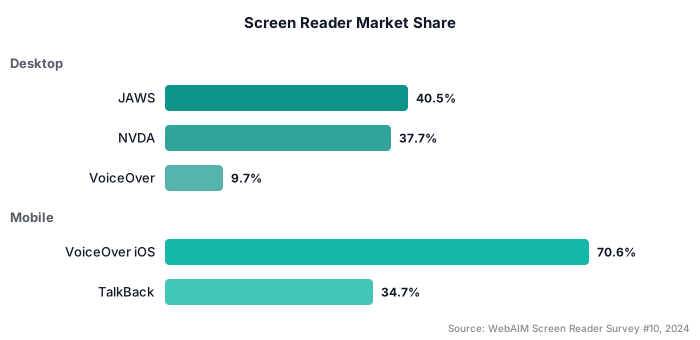
Screen readers are the primary assistive technology for web testing. JAWS holds 40.5% market share, NVDA 37.7%, and VoiceOver 9.7% (WebAIM SR Survey #10, 2024). Testing with at least one screen reader is non-negotiable if you're building for real compliance rather than checkbox compliance.
You don't need to become an expert in every screen reader. But you do need to hear what your site sounds like.
Desktop Screen Reader Testing
Start with NVDA on Windows. It's free, open source, and covers 37.7% of the desktop screen reader market. If you're on macOS, VoiceOver is built in, press Cmd+F5 to toggle it.
Here's what to test:
- Navigate by headings. Press H in NVDA/VoiceOver to jump between headings. Does the heading hierarchy make sense? Are levels sequential?
- Read through forms. Tab into each form field. Does the screen reader announce the label, required state, and error messages?
- Test landmarks. Use the landmarks list (D in NVDA, Rotor in VoiceOver). Are your
<nav>,<main>,<header>, and<footer>elements present and labelled? - Check dynamic content. Trigger a toast notification, open a modal, submit a form. Does the screen reader announce the change? Live regions (
aria-live) are the mechanism, and they're frequently broken.
Mobile Screen Reader Testing
This is where most teams fall short. 91.3% of screen reader users also use a mobile screen reader (WebAIM SR Survey #10, 2024). VoiceOver on iOS dominates with 70.6% share, followed by TalkBack on Android at 34.7%.
Mobile testing reveals different issues than desktop. Touch targets that are too small. Gestures that have no alternative. Scroll containers that swallow focus. If you aren't testing on a phone with a screen reader running, you're missing what the majority of AT users actually experience.
Practical Testing Workflow
You don't need to test every page with every screen reader. Here's a realistic workflow:
- Core user flows only. Sign up, search, checkout, settings. Test the paths that matter.
- One desktop SR + one mobile SR. NVDA + VoiceOver iOS covers the most widely used desktop and mobile screen readers.
- Record what you hear. Screen-record your testing sessions. When you file a bug, attach the recording. It's ten times clearer than a written description.
Most accessibility guides tell you to "test with a screen reader" without acknowledging the learning curve. In our experience, it takes about four hours of practice with NVDA before you can navigate efficiently enough to run meaningful tests. Budget that learning time. Don't try to test and learn simultaneously, you'll miss real issues while fighting the tool.
Citation capsule: JAWS holds 40.5% screen reader market share, NVDA 37.7%, and VoiceOver 9.7% (WebAIM SR Survey #10, 2024). Mobile screen reader usage is at 91.3%, with VoiceOver iOS at 70.6% and TalkBack at 34.7%. Testing with NVDA on desktop and VoiceOver on iOS covers the most widely used desktop and mobile screen readers.
How Do You Add Accessibility Testing to CI/CD?
A scanner that runs on your laptop is worth far less than one that blocks a pull request, so this is the step that turns testing into a habit rather than an event. The approach we recommend pairs Playwright with @axe-core/playwright, gates pull requests on zero critical and serious violations, and tracks moderate and minor counts as metrics rather than blockers.
Copy the working test file and GitHub Actions workflow, plus how to introduce a gate on a codebase that already has accessibility debt without blocking every PR, from how to set up accessibility testing in GitHub Actions.
Which Standard Should You Test Against?
Test against WCAG 2.2 AA. It is the current W3C recommendation, it is backwards compatible with 2.1, and the laws now catching up (the EAA, ADA Title II) are written against 2.1 AA at minimum, so 2.2 AA leaves you covered either way.
WCAG 2.2 added nine success criteria and removed one (4.1.1 Parsing), concentrating on mobile, cognitive and motor accessibility. Target Size, Focus Not Obscured, and Dragging Movements are the three that most often change how frontend code is written. The full criterion-by-criterion breakdown, with what each one demands and which are scanner-detectable, is in the WCAG 2.2 compliance checklist.
How Do You Build an Ongoing Monitoring Strategy?
Accessibility isn't a one-time fix. Every deployment can introduce regressions. A new component, a CSS refactor, a third-party widget, any of these can break what was working yesterday. 88% of professionals say accessibility improves brand reputation (Level Access, 2025), but reputation only holds when you maintain it.
Here's how to build a monitoring strategy that actually sticks.
Scheduled Scans
Run automated scans on a recurring schedule, weekly at minimum, daily if your site changes frequently. Track violation counts over time. A graph that trends upward means you're accumulating debt. A graph that trends downward means your process is working.
Don't just scan the homepage. Cover your top ten user flows: sign-up, login, search, product pages, checkout, settings, error states. These are the pages real users actually navigate.
Regression Detection
Set baselines. After your initial remediation push, record the violation count for each page. On subsequent scans, flag any page that exceeds its baseline. This is how you catch new issues before they compound.
The mistake most teams make is scanning only the homepage and calling it done. In our experience, interior pages, settings, account management, billing, often have significantly more violations than the homepage because they receive less design attention.
Score Tracking and Team Workflows
Assign accessibility ownership to squads or features, not to a single "accessibility person." When a scan finds violations, the owning team gets the ticket. This distributes the work and builds knowledge across the organization.
Track two metrics at the team level:
- Violation count per page, the raw number. Is it going down?
- Time to fix, how many days between detection and resolution?
If time-to-fix is climbing, that's a process signal. Either tickets are being deprioritized, or developers don't know how to fix the issues they're seeing.
See the full API documentation for scan scheduling and webhook configuration, or explore scanning features for monitoring capabilities.
Citation capsule: Accessibility monitoring requires recurring scans, regression baselines, and team-level ownership. 88% of professionals say accessibility improves brand reputation (Level Access, 2025). Tracking violation counts per page and time-to-fix metrics at the team level prevents regressions from accumulating after initial remediation.
Frequently Asked Questions
Which screen reader should I test with first?
Start with NVDA on Windows (37.7% market share) or VoiceOver on macOS (9.7% desktop share). For mobile, test with VoiceOver on iOS (70.6% of mobile SR users) (WebAIM SR Survey #10, 2024). Testing with NVDA and VoiceOver iOS covers the most widely used desktop and mobile screen readers.
Is WCAG 2.2 legally required?
It depends on your jurisdiction. The European Accessibility Act references WCAG 2.1 AA. US ADA lawsuits typically cite WCAG 2.0 or 2.1 AA as the standard. However, WCAG 2.2 is backward-compatible, meeting 2.2 AA automatically satisfies 2.1 and 2.0 AA. Testing against 2.2 is the safest approach.
How often should I run accessibility scans?
Run automated scans on every pull request and after every deployment. For monitoring, schedule weekly scans at minimum. Teams with frequent deploys should scan daily. The goal is catching regressions before they accumulate, fixing one new violation is trivial, fixing fifty is a sprint.
Does ARIA improve or hurt accessibility?
Both. When used correctly, ARIA communicates semantics to assistive technology. When misused, it creates worse barriers. Pages with ARIA average 57 errors versus 27 on pages without it (WebAIM, 2025). The first rule of ARIA: use native HTML elements whenever possible.
What's the cheapest way to start accessibility testing?
Install the axe DevTools browser extension (free) and run it on your key pages. Add @axe-core/playwright to your test suite (free, open source). These two steps alone cover the automated testing layer. For manual testing, use the built-in keyboard and VoiceOver/NVDA, both free. You can reach 80%+ coverage without spending a dollar.
How much do accessibility lawsuits cost?
ADA website lawsuits exceeded 5,000 in 2025 (UsableNet, 2026). In Europe, EAA penalties are set per member state, reaching up to 100,000 euros in Germany (Level Access, 2026). The cost of prevention, automated scanning and periodic manual review, is a fraction of a single settlement.
Key Takeaways
Accessibility testing in 2026 isn't a checkbox. It's a development practice, like writing tests or reviewing PRs. The tools are mature, the data is clear, and the legal pressure is real. Here's what to take away.
Automated scanning catches more than half of all accessibility issues. Pair it with keyboard testing, screen reader checks, and CI/CD gating to cover substantially more. Don't rely on Lighthouse scores, they create false confidence.
Start small. Add axe-core to your Playwright tests this week. Gate PRs on zero critical violations. Pick one page, test it with NVDA, and fix what you hear. Then expand from there.
The biggest risk isn't getting sued. It's building something that 16% of the world's population can't use, and never knowing it.
Ready to automate? See how API-based accessibility scanning works.
For pricing plans and API documentation, visit a11yflow.dev.